To move your workout history out of Strong or Hevy, export a CSV file from the app’s settings, then import that file into your new log. In FitArchive, open the web app and go to More > Settings > Your data > “Import workouts from Strong or Hevy (CSV)”. You see a preview of what will be added before anything is written, and workouts already in your log are skipped. Keep the CSV afterwards: it is your own copy of every set you logged.
How do you export data from the Strong app?
Strong’s help centre describes its export in Can I export my workout data?. At the time of writing:
- iPhone: open the in-app Settings and select Export Strong Data.
- Android: open the in-app Settings and select Export Data.
The result is a spreadsheet-friendly CSV of your workout history. Strong’s help page notes that exported files cannot be imported back into Strong, so treat the CSV as an archive and a transfer file, not a restore point for Strong itself. A shared workout or template link is not the full history; you want the CSV.
Save the file somewhere your browser can reach, such as your phone’s files or a computer.
How do you export a CSV from Hevy?
Hevy’s help article How to Import Strong App CSV Files and Export Your Data in Hevy gives this path at the time of writing:
Profile > Settings > Export & Import Data > Export Data > Export Workouts
The same screen also offers Export Measurements. That file holds body measurements, not sets and reps, so choose Export Workouts for your training history.
What is in a Strong or Hevy CSV export?
Both apps write one row per set. The workout’s date, name and notes repeat on every row, followed by the exercise and that set’s numbers. These are the columns FitArchive’s importer reads:
| What it describes | Strong column | Hevy column |
|---|---|---|
| Workout start | Date | start_time (and end_time) |
| Workout length | Duration or Duration (sec) | worked out from end_time |
| Workout name and notes | Workout Name, Workout Notes | title, description |
| Exercise | Exercise Name | exercise_title |
| Exercise notes | Notes | exercise_notes |
| Set type | Set Order (W = warm-up, F = failure, D = drop set) | set_type (warmup, normal, failure, dropset) |
| Load | Weight, Weight (kg) or Weight (lbs) | weight_kg or weight_lbs |
| Reps and effort | Reps, RPE | reps, rpe |
| Timed or distance sets | Seconds, Distance | duration_seconds, distance_km or distance_miles |
| Supersets | none | superset_id |
The importer recognises the file by its header row, so you do not have to say which app it came from. It accepts commas or semicolons as separators, and it reads Hevy dates written in several app languages, including English and Vietnamese. Older Strong files have a plain “Weight” column with no unit; in that case the preview asks whether the weights are in kg or lb.
How to import the CSV and read the preview
- Open FitArchive in your browser (the import is in the web app).
- Go to More > Settings > Your data and choose Import workouts from Strong or Hevy (CSV).
- Pick the file. Nothing is saved yet. The preview shows:
- which app the file came from;
- workouts to add and the number of sets;
- already here, skipped: workouts whose start time is already in your log;
- timed or distance sets that can’t be imported yet;
- rows that couldn’t be read, such as an unreadable date or a value outside the app’s limits.
- If the file has no unit, pick kg or lb.
- Exercises with common names are matched to FitArchive’s built-in exercises. The rest become your own exercises, and you choose the main muscle each one trains. The muscle is prefilled when the name gives a hint (for example “curl” suggests biceps), and the Import button stays off until every new exercise has one.
- Select Import workouts. Everything in the preview is saved in one step, and your plans and backups are not changed.
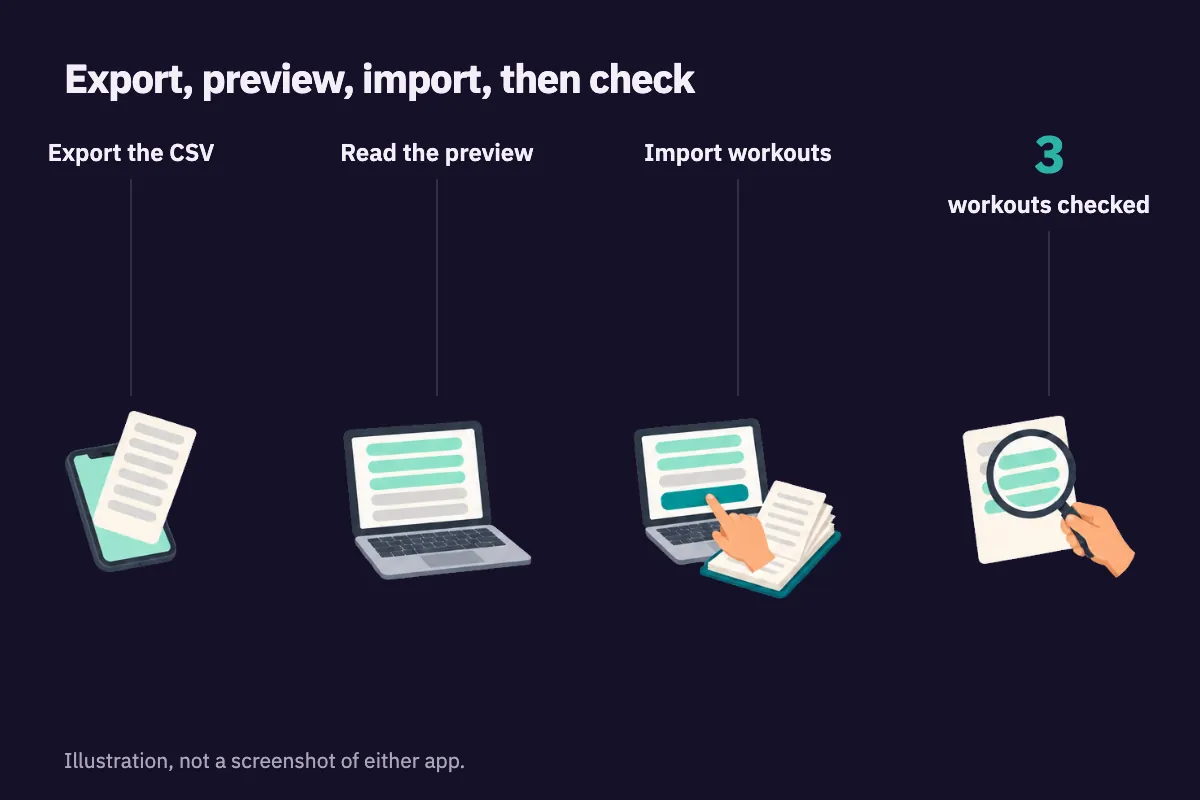
Nothing is saved until you import, and workouts already in your log are skipped.
What carries over and what does not?
| Item | Carries over? | How it arrives |
|---|---|---|
| Weight and reps per set | Yes | Pounds are converted to kilograms |
| Warm-up sets | Yes | Marked as warm-ups, so they stay out of working-set counts |
| RPE | Yes, as RIR | RIR = 10 − RPE, rounded to a whole number, 0 to 5 |
| Failure sets with no RPE | Yes | Logged at 0 RIR |
| Drop sets | Partly | Kept as ordinary sets; the drop-set label is not kept |
| Workout name and notes | Yes | Combined into the workout note |
| Exercise notes | Yes | Kept per exercise |
| Hevy supersets of two exercises | Yes | Paired again as a superset |
| Hevy circuits of three or more | Partly | Kept as separate exercises |
| Strong supersets | No | Strong’s CSV has no superset column |
| Timed and distance sets (planks, runs) | No | Counted in the preview and left out |
| Routines or templates | No | They are not in a workout export |
| Body measurements | No | A separate export in Hevy |
Here is an example of how a few rows convert, using invented numbers:
| Row in the export | Set in FitArchive |
|---|---|
| Strong, Set Order W, 60 kg × 5 | Warm-up, 60 kg × 5 |
| Strong, Set Order 1, 100 kg × 5, RPE 8 | 100 kg × 5, 2 RIR |
| Strong, Set Order F, 100 kg × 3, no RPE | 100 kg × 3, 0 RIR |
| Hevy, normal, 40 kg × 10, RPE 7.5 | 40 kg × 10, 3 RIR (2.5 rounds up) |
| Hevy, Plank, 60 seconds | Skipped (timed set) |
If you have never used RPE, the RPE vs RIR guide explains why the two scales map onto each other this way, and the RIR logging guide covers recording it from now on. Sets with no RPE and no failure mark arrive with RIR left blank, which is accurate: the old log never said.
Can you import a newer export later?
Yes. FitArchive skips any workout whose start time is already in your log, so importing the same file twice adds nothing, and importing a newer export only adds the workouts logged since.
One limit to know: the match is on start time. If you edit a workout’s start time in the old app between exports, it will look like a new workout. And if you have the same training in both Strong and Hevy (for example after moving from one to the other), import the history from one file only; the two apps may not record identical start times.
How to check your history after importing
Do not delete anything from the old app until you have checked a few things:
- Count. Compare the number of workouts added with what the old app shows for the same period.
- Spot-check three workouts. Pick an old one, a recent one and one with notes or supersets. Compare sets, weights and reps line by line.
- Check units. A 100 kg bench press showing as 45 kg, or 220 kg, means the unit was wrong.
- Look at estimated 1RM. FitArchive estimates 1RM with Epley applied to the reps you could have done: kg × (1 + (reps + RIR) / 30), and only when reps + RIR is 15 or fewer. The figure may not match the old app’s, because apps use different formulas and FitArchive counts the reps you had left in sets with RIR. The one-rep max guide explains the formula.
- Check new exercises. Make sure the muscle you picked for each custom exercise is right, because weekly sets per muscle use it.
Once that matches, the progressive overload guide shows how to keep comparing like with like from here.
Why keep a portable copy of your training log?
Your training history is the most useful record you have for deciding what to do next: which loads you used, what worked, when you stalled. A CSV export is plain text that opens in any spreadsheet and does not depend on any one app staying the same. Save the original file with the date in its name, keep it in a second place such as cloud storage, and export again every few months or before you change phones. If you prefer paper or a spreadsheet, the workout log template uses the same set-by-set layout.
Switching from Strong to Hevy instead?
Hevy’s Strong import guide describes a built-in import at Profile > Settings > Export & Import Data > Import Data > Import Strong CSV. At the time of writing it asks for a file exported directly from Strong with the app set to English and weights in kilograms, and it notes that saved routines and supersets are not carried over. Check that page for current details.
Common mistakes when moving workout data
- Choosing the wrong unit. If the file has no unit, the preview asks. Pick the unit you logged in, not the one you want to see.
- Exporting the wrong thing. A shared routine, a single workout link or Hevy’s measurements export is not your workout history.
- Editing the CSV first. Opening and re-saving it in a spreadsheet can change dates or separators. Import the original file.
- Deleting the old app too early. Check the import, and keep the CSV, before you remove anything.
- Expecting cardio to move. Timed and distance sets are counted and skipped for now.
A free log to import your history into: FitArchive
FitArchive is a free, private training and food log that runs in your browser and works offline; your data stays on your device unless you sign in to sync. It logs weight, reps and RIR for every set, marks warm-ups and keeps notes per workout, and the Progress screen shows estimated 1RM and weekly sets per muscle. The same Your data section also has Download backup and Export sets (CSV), so your history stays portable here too. You can look around first in the demo.
Still deciding whether to move? See when a free Hevy or Strong alternative is worth it.
Strong and Hevy are trademarks of their respective owners. FitArchive is not affiliated with or endorsed by either.